Your Website
To move your site to us, your domain's nameservers need to point our way. Two ways to get that done. Pick whichever you prefer.
Wherever you bought your domain (GoDaddy, Namecheap, Squarespace) you'll be able to access your Nameservers. Many people build their sites in Wix. If you bought the domain through Wix too, we'll need to set up a call and go through this together.
The screenshots below are from GoDaddy.
- Sign in to your GoDaddy Domain Portfolio. (Need help logging in? Find your username or password.)
- Select an individual domain to open the Domain Settings page.
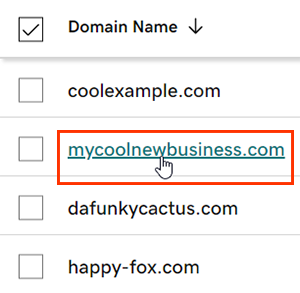
- Select DNS, then select Nameservers.
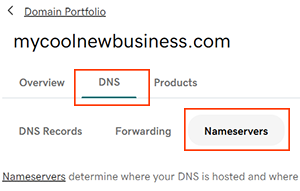
- Choose the "I'll use my own nameservers" option. Matt will give you the custom nameservers to enter.
- Select Save, then Continue to complete your updates.
Most DNS updates take effect within an hour, but can take up to 48 hours to update globally.
Your details are encrypted inside your own browser before they're sent, using a key only Matt has. Our server stores them as scrambled text it can't read. Nobody else can read it either.
Once your nameservers are pointed, please change your registrar password. We only need access for that one change.
GoHighLevel
This moves your GoHighLevel sub-account under our agency so we can build and run your campaigns.
- Settings › My Staff
- Settings › Domains
- Settings › URL Redirects
- Settings › Integrations
- Sites › QR Codes (so we can see if any QR codes need to carry over)
If you're managed by an existing agency
- Contact your point of contact at the agency and request a GHL account transfer. They'll need our relationship number:
Relationship #0-861-897That's it. Once they submit the transfer request, Matt accepts it and you're done.If they refuse to transfer your account
No problem. We'll move everything over ourselves. Matt will just need your login.
If you manage your own agency-level account
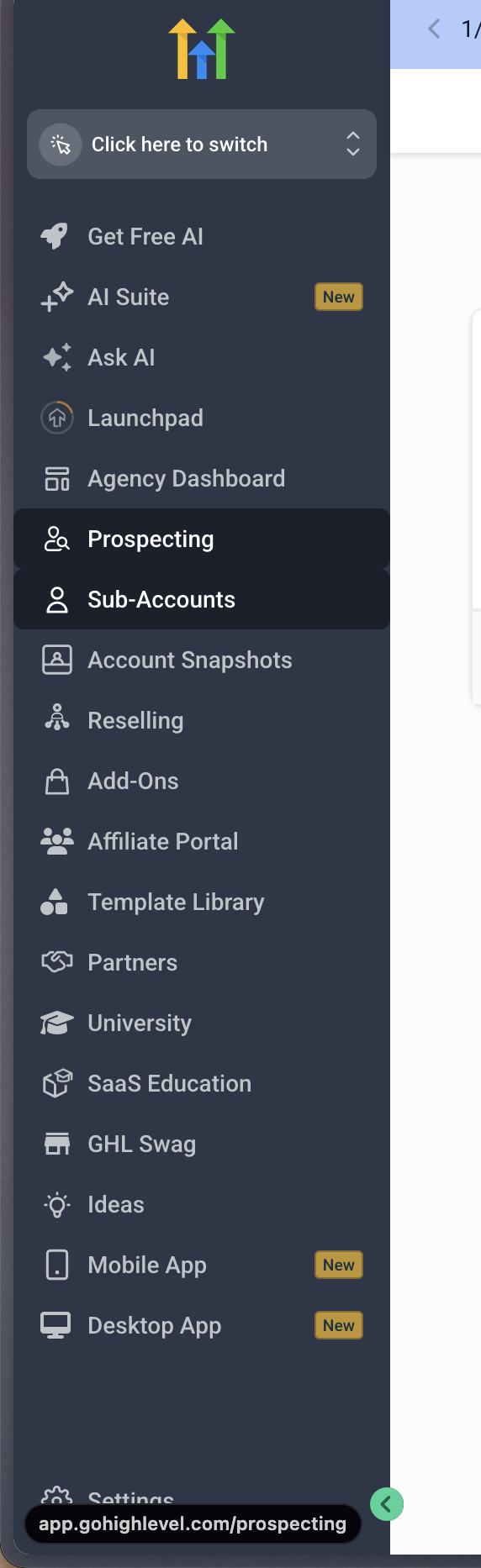
- From the Agency View, click Sub-Accounts.
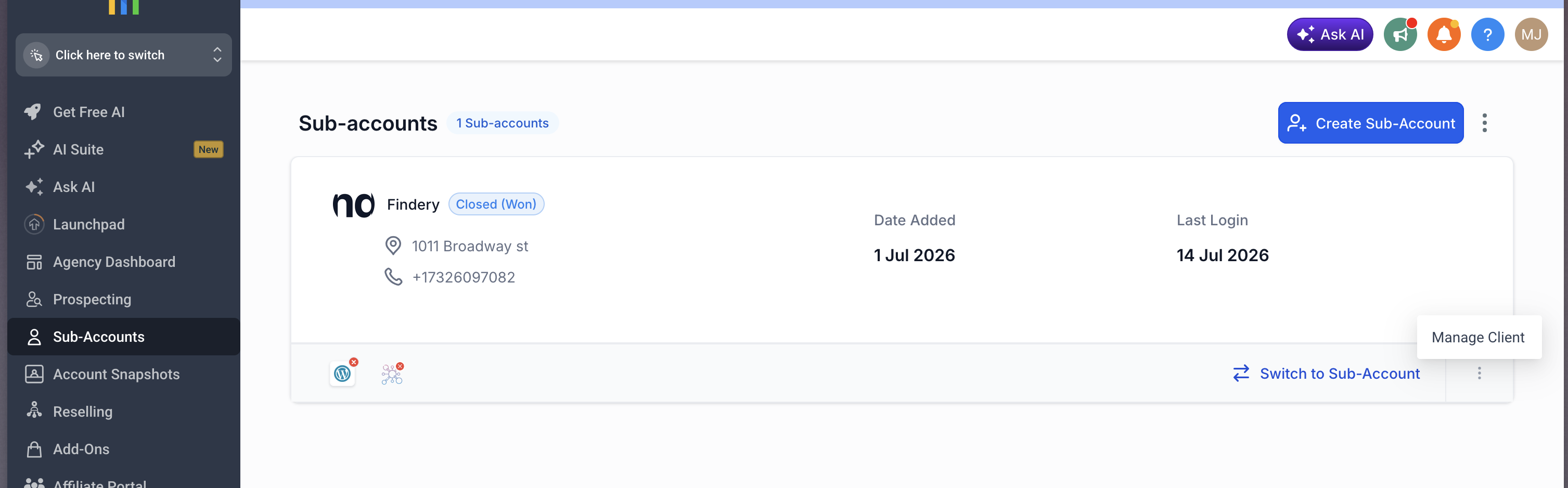
- Click the three dots in the bottom-right corner of the sub-account, then click Manage Client.
- Click Actions, then Transfer Sub-Account.
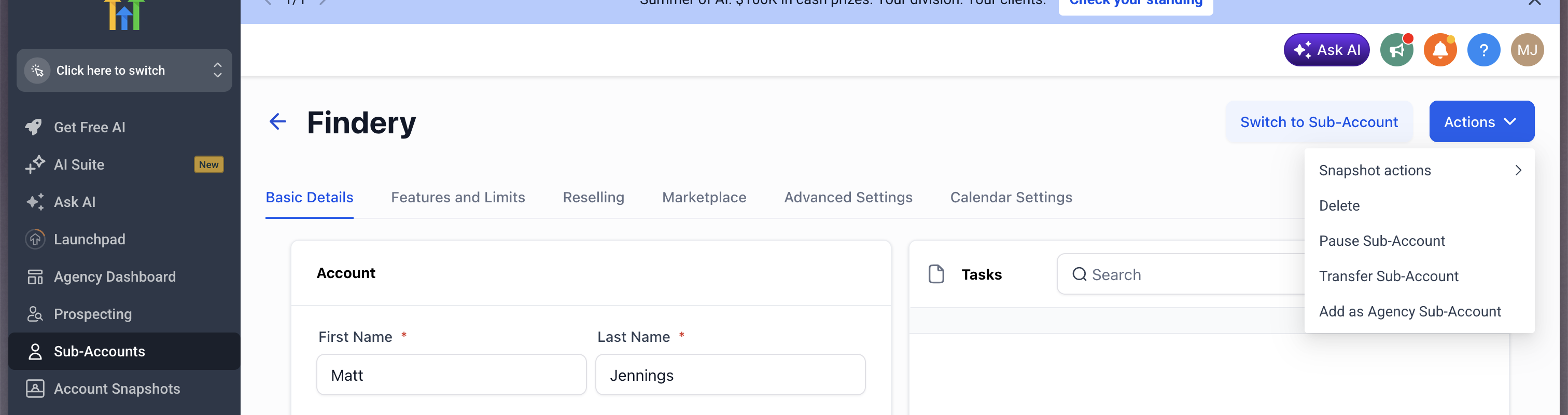
- Check the "I understand" box and paste our relationship number into the receiving agency relationship number box:
Relationship #0-861-897
A few things get reconnected on our end and yours:
- You'll need to reconnect all auth connections (e.g. Google, Facebook, QuickBooks, Clio, DrChrono)
- You'll re-integrate Facebook and Google
- You'll set up the sub-account-level Stripe, if applicable
- Matt will set your campaigns, triggers, and workflows back to active
- Matt will re-add your domains
Google Ads
Matt needs to be a user on your Google Ads account so he can build and run your ads. You stay the owner the whole time. Nothing gets transferred, and you can remove his access whenever you want.
Every step below asks for an email address. This is the one:
Tap Copy instead of retyping it. One typo and the invite goes nowhere.
First, which one sounds like you?
A computer, since this is fiddly on a phone. Plus the Google account you normally use to sign in to Google Ads. It takes about two minutes.
- Go to ads.google.com and click Sign in in the top-right corner. Sign in with the Google account that owns your ads.
- If you see a page asking you to create a campaign or set a budget, look for a link that says Switch to Expert Mode or the Skip option. You don't need to create a campaign today.
- In the menu down the left-hand side, click Admin. It's near the bottom and has a small gear icon next to it.
Can't find it?
The left menu is sometimes collapsed to just icons. Click the ☰ (three lines) at the top-left to expand it, then look for the gear labelled Admin.
- Click Access and security.
- Make sure you're on the Users tab, then click the big blue + (plus) button.
- Type in the email address:
Emailmatt@mysmallbusinessmarketing.com
- Choose the access level: Admin.
Admin is the level that lets Matt do the real work: set up conversion tracking, link your Google Business Profile and Analytics, and fix things without coming back to you every time.
Access level What it can do Admin Pick this Everything: build campaigns, set up tracking, link accounts, manage users Standard Build and edit campaigns, but can't link accounts or manage users Read only Can look, can't change anything Email only Just receives reports by email Billing Only sees payment settings - Click Send invitation.
- You're done. Matt gets an email, accepts it, and his name shows up in that same Users list.
That means your login doesn't have admin rights on the account. Usually that's because someone else set it up for you. Whoever built the account will need to do this, or add you as an Admin first. Not sure who that is? Tell Matt and he'll help you track it down.
One more thing that helps: your account number
While you're in there, send Matt your Customer ID. It's the 10-digit number shown at the top of the page next to your account name, and it looks like 123-456-7890. That way he can confirm he's in the right account.
Before anything else, get one question answered: does the Google Ads account belong to you, or to them? Everything else depends on that answer.
Some agencies run your ads out of an account they own. If that's the case, then when you part ways you can lose the whole thing: your campaign history, your conversion tracking, and the audience data you paid months of ad spend to build. You'd be starting from scratch.
So find out now, while everyone's still on good terms.
Step 1: Ask them this
Copy and paste this into an email or text. It's a fair question to ask.
Hi, quick question about our Google Ads setup.
Is the Google Ads account we've been running in my business's name and owned by me, or is it owned by your agency?
If it's mine, could you send me the account's Customer ID (the 10-digit number at the top of the page) so I have it on file?
Thanks!
Step 2: What to do with their answer
Good, that's the easy path. You just need to be able to sign in yourself. Ask them to give your own email Admin access, then follow the first tab to invite Matt.
Ask them for one of two things. Either one works:
- Transfer the account to you, so it's in your name going forward. This is the better outcome, because you keep all the history.
- Or give you Admin access to it, so you're not locked out of your own advertising.
Once either one is done, tell Matt and he'll take it from there.
Then we move on without them, and you come out ahead anyway. Matt will build you a new Google Ads account that you own outright. Your name, your email, yours to keep.
You won't be in this spot again. No agency, ours included, can hold your advertising hostage when the account is in your name. Let Matt know and he'll set it up.
Easiest option: let Matt set it up. Send him a message saying you don't have a Google Ads account yet and he'll handle it.
You can, but Google's sign-up flow pushes you into a simplified "Smart campaign" and asks for a budget and a live ad before it'll let you finish. Those accounts are set up differently and are a nuisance to undo later. It's faster to let Matt build it properly.
If you'd rather create it yourself
- Go to ads.google.com and click Start now.
- Sign in with the Google account you want to own the ads. Use a business email you'll keep long-term, not a staff member's personal Gmail.
- When it starts asking about your first campaign, look for Switch to Expert Mode and click it. Then choose Create an account without a campaign.
- Confirm your business details and finish. You don't need to enter payment info yet, and you don't need to launch anything.
- Now follow the "I have a Google Ads account" tab above to invite Matt.
The account is in your name and stays yours. Matt is a user on it, not the owner.
Payment Card
Your ad accounts bill ad spend to a card in your name. Send it here and Matt will enter it on the account for you. The account stays yours, and you can change or remove the card in it at any time.
Your card details are encrypted inside your own browser before they're sent, using a key only Matt has. Our server stores them as scrambled text it can't read. Nobody else can read it either.
Once the card is entered on your account, the submission is deleted. Nothing stays on file.
Reporting Access
To tell you what's working, Matt has to be able to see the accounts your numbers live in. There are four of them, and he'd rather set all of them up himself. Your part is adding him once per account.
First, which one sounds like you?
What you're granting is reporting access. It lets Matt look at numbers. It doesn't let him or anyone else spend your money, change your website, or post anything. And you only need the accounts you actually have. Skip any that don't apply to you.
Same address as the Google Ads step. Every step below asks for it:
Tap Copy instead of retyping it. One typo and the invite goes nowhere.
Google Analytics
This is the account that shows how many people visit your website and what they do once they're there.
- Go to analytics.google.com and sign in.
- Click Admin. It's the gear icon at the bottom-left of the page.
- Click Property access management.
- Click the blue + (plus) button in the top-right.
- Paste the email in and set the role to Administrator.
- Click Add. That's your whole job on this one. Matt sets up the reporting connection and finds the property ID himself.
Administrator is the level that lets Matt finish without coming back to you. Viewer only lets him look, so every small setting would turn into another message asking you to change it. He's still only reading your numbers either way, and you can lower his access or remove him whenever you like.
Google Search Console
This one shows what people typed into Google before they found you, and where you show up.
- Go to search.google.com/search-console and sign in.
- Pick your website from the list at the top-left.
- Click Settings in the left-hand menu.
- Click Users and permissions.
- Click Add user and paste the email in.
- Set the permission to Owner, then click Add.
Pick the one for the domain you've had the longest. That's where your search history is. A property that got added recently is nearly empty, so it won't tell Matt much.
Can't tell which is which? Add him to all of them and he'll sort it out.
Only an existing owner can add an owner. If that option isn't there, your login is on the property as a user rather than an owner. Whoever originally verified the site will need to do this step, or make you an owner first. Not sure who that was? Tell Matt and he'll help you track it down.
Google Ads
If you already gave Matt access to Google Ads, this one's handled. The Admin access you gave him there covers the reporting too. One less thing.
Haven't done that one yet?
Facebook and Instagram ads
This is the one Matt can't do for you. Meta only lets the owner of an ad account hand out access, and that's you.
- Go to business.facebook.com and click Business settings.
- In the left-hand menu, under Accounts, click Ad accounts.
- Click the ad account you run your ads from, then click Assign partners.
- Choose to add the partner by Business ID, and enter Matt's:
Business ID[Matt's Business ID — ask Matt]
- Give the partner View performance, then save.
The Business ID is the one thing on this page Matt has to send you. Ask him for it before you start this step, otherwise you'll get to step 4 and be stuck.
Text or email Matt and tell him which ones you got to. He'll check they came through and let you know if anything's missing. If one of them stopped you, say so and he'll finish it with you on a quick call.
Fair enough. This route hands over read-only access instead, so Matt can see the numbers but can't touch any settings. The trade-off: there are a couple of details he can't look up himself, so you'll need to send them to him.
This is not the same as Matt's email. It's a reporting account rather than a person, so there's no inbox behind it. It reads your numbers and does nothing else.
Use Copy on this one. It's far too long to retype.
Google Analytics
- Go to analytics.google.com, click Admin (the gear at the bottom-left), then Property access management.
- Click the blue + (plus) button in the top-right.
- Paste the address in and set the role to Viewer.
- Untick "Notify new users by email". There's no inbox on the other end to notify.
- Click Add.
- Send Matt your Property ID. Find it under Admin → Property settings, top-right. It's 9 digits, like 545547196.
Not the one starting with G-
There's a second ID on that screen that looks like G-XXXXXXXXXX. That's the measurement ID and it's the wrong one. Matt needs the plain 9-digit number.
Google Search Console
- Go to search.google.com/search-console and pick your site from the list at the top-left.
- Click Settings, then Users and permissions.
- Click Add user and paste the address in.
- Set the permission to Restricted, then click Add.
- Send Matt the property exactly as Search Console writes it at the top of the page. It's either sc-domain:yourgym.com or https://yourgym.com/. If it's the second kind, keep the slash on the end. It matters.
If several sites are listed, pick the one for the domain you've had the longest. That's where your search history is.
And if Add user isn't there at all, your login isn't an owner on the property. Whoever originally verified the site has to do this step, or make you an owner first.
Google Ads
Same as the other route. Giving Matt access to Google Ads already covers what he needs.
Facebook and Instagram ads
There's no do-it-yourself version of this one. Meta handles it the same way whichever route you pick, because only the owner of the ad account can hand out access.
- Go to business.facebook.com and click Business settings.
- In the left-hand menu, under Accounts, click Ad accounts.
- Click the ad account you run your ads from, then click Assign partners.
- Choose to add the partner by Business ID, and enter Matt's:
Business ID[Matt's Business ID — ask Matt]
- Give the partner View performance, then save.
The Business ID is the one thing on this page Matt has to send you. Ask him for it before you start this step, otherwise you'll get to step 4 and be stuck.
Send Matt a message with the Property ID and the Search Console property, and tell him which accounts you got to. He'll confirm the numbers are coming through. If one of them stopped you, say so and he'll finish it with you on a quick call.
Membership System
Your membership system (Mindbody, Zen Planner, WellnessLiving, PushPress, TeamUp, Wodify or similar) holds the numbers that matter most: who is paying, who stopped, and what a member is worth to you. Give Matt reporting access and he pulls those reports himself. You never have to export anything.
He pulls your member, payment, visit and membership reports. Those feed the money leaks and membership panels on your admin dashboard: declined payments nobody chased, cards that expired, memberships frozen and never restarted. He looks at reports only. He does not change anything in your system.
Option A: add Matt as a staff user (preferred)
Every platform lets you add a staff member with limited permissions. This keeps your own login private and lets you remove his access any time.
- In your system's settings, find Staff (some platforms call it Users or Team) and add a new staff member.
- Use this email:
Emailmatt@mysmallbusinessmarketing.com
- Give the new user permission to view reports and export member lists. No scheduling, payment or client-editing permissions are needed.
- Tell Matt which platform you use. He takes it from there.
Option B: send your login securely
If adding a staff user is not an option on your plan, send your login here instead. Matt will set up his own staff access with it and then you can change your password.