If we have asked you for your app version, here is where to find it.
First, the name
In the Play Store and the App Store the app is called LeadConnector, not Digital Gym Growth. That is the one to look for.
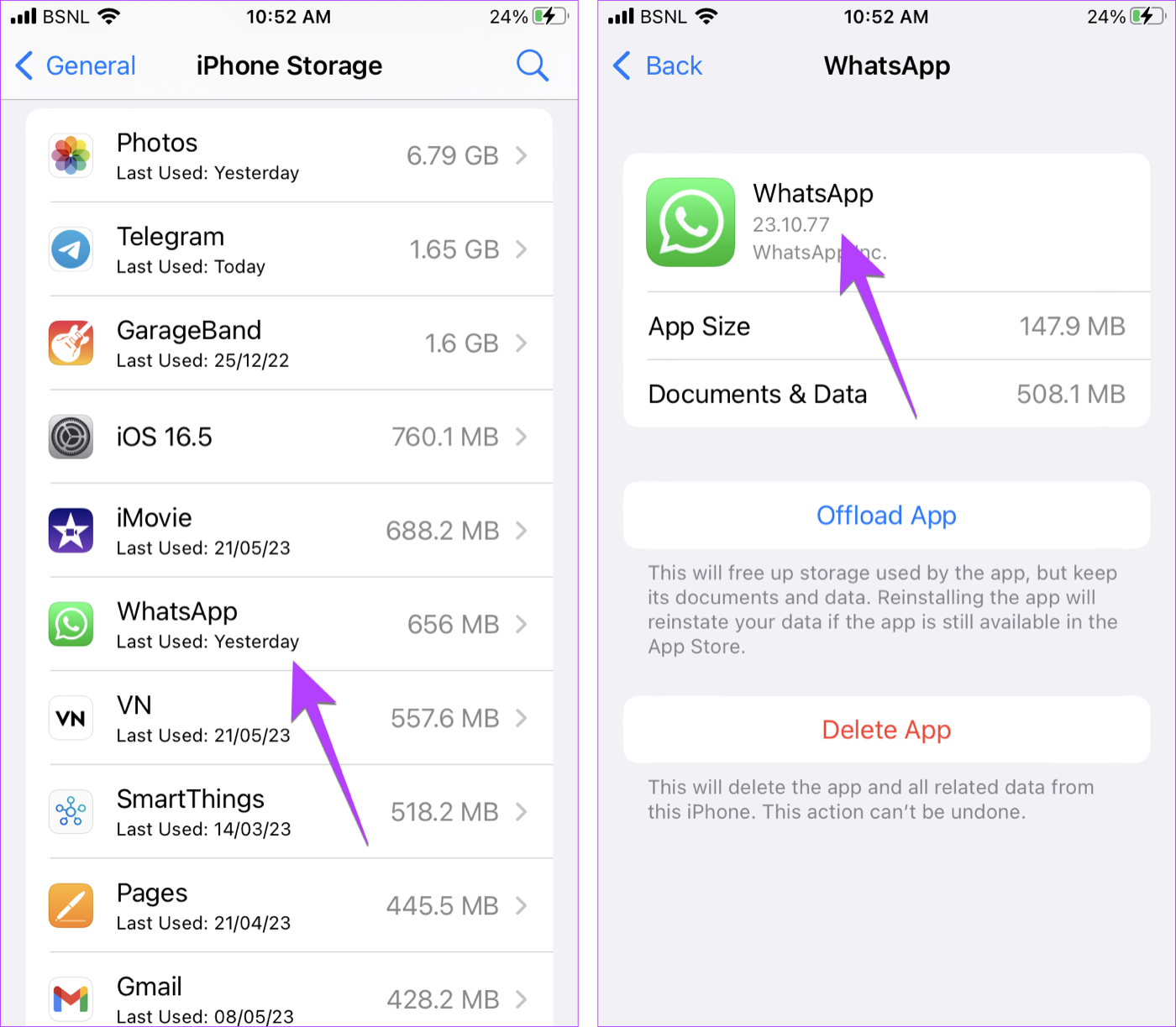
On iPhone
- Open Settings.
- Tap General.
- Tap iPhone Storage.
- Scroll down and tap LeadConnector. The list takes a moment to load.
- The version number is under the app name.
Or from the App Store
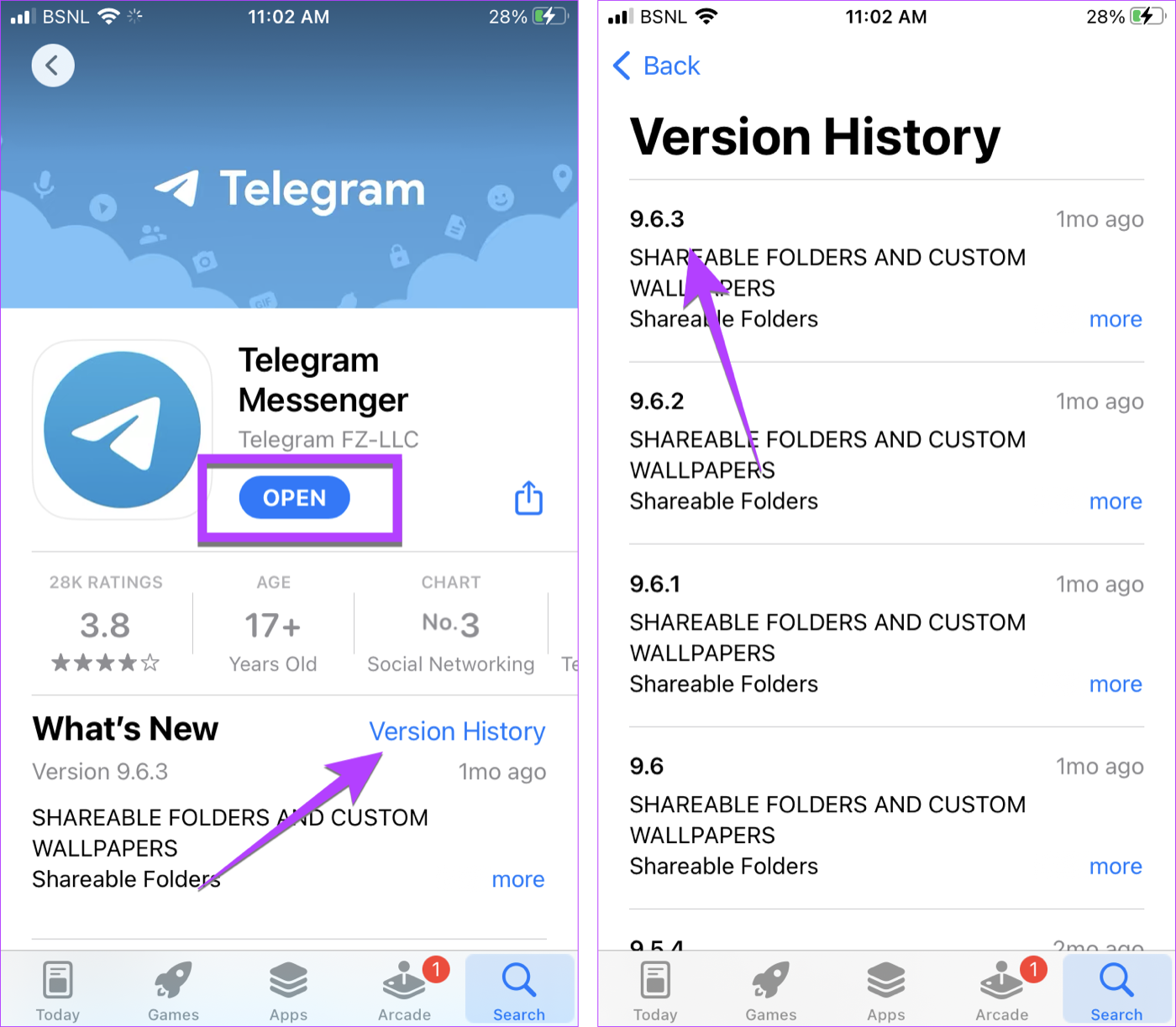
- Open the App Store.
- Search for LeadConnector.
- Tap Version History.
- The number at the top is your version, as long as the button says Open.
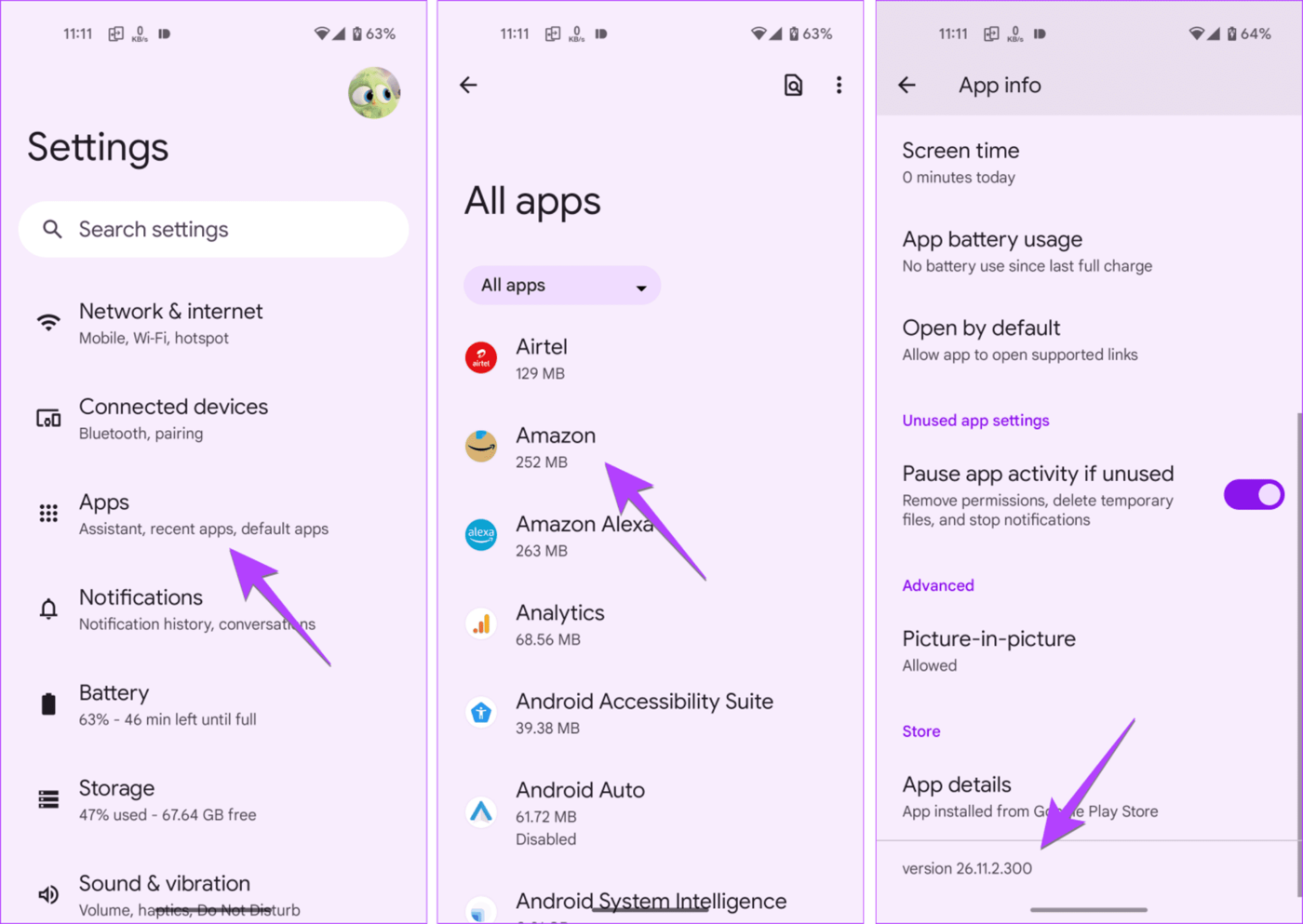
On Android
- Open Settings.
- Tap Apps, then See all apps if you are asked.
- Tap LeadConnector.
- Scroll to the bottom. The version is at the end of the page.
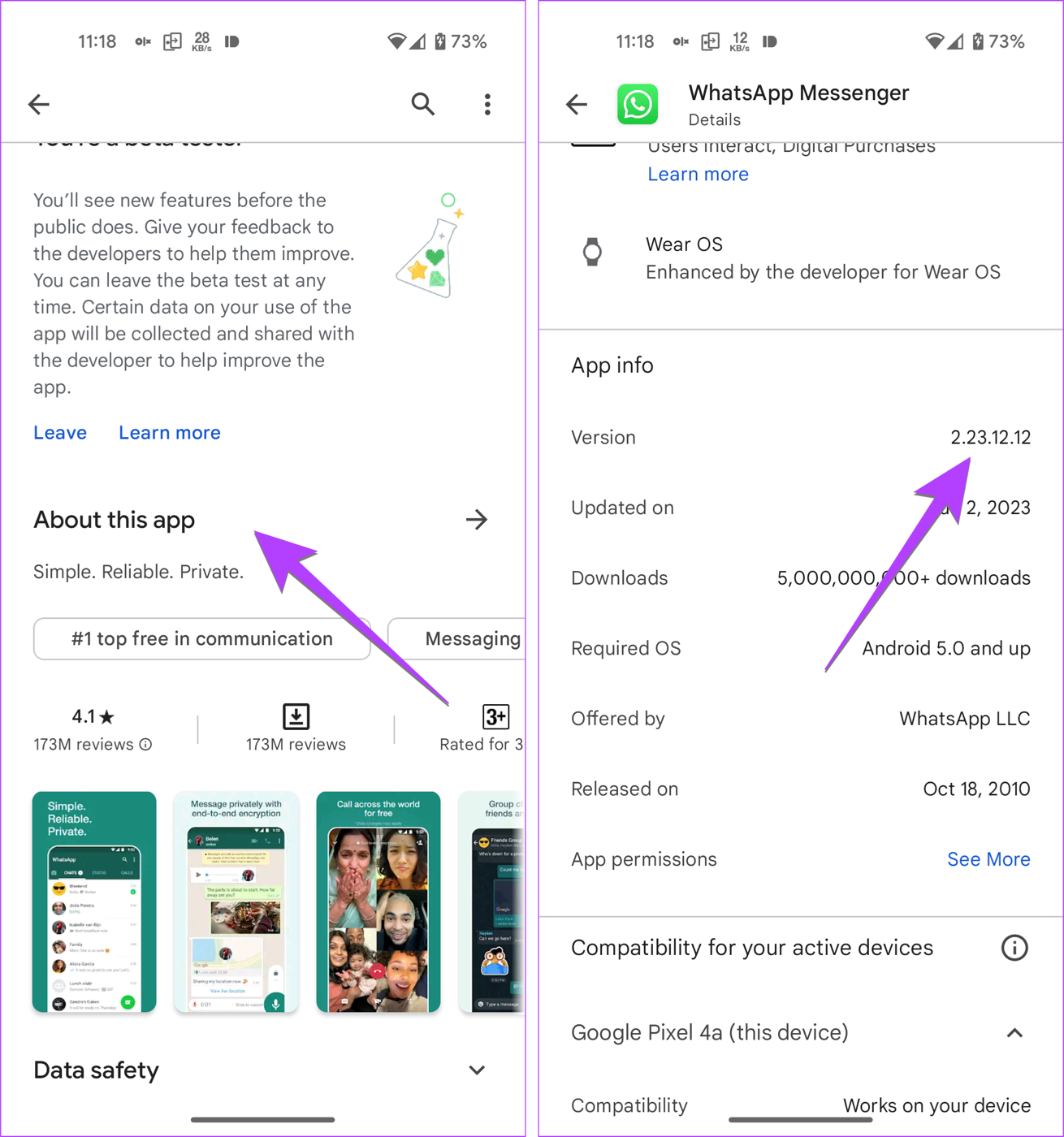
Or from the Play Store
- Open the Play Store.
- Search for LeadConnector.
- Scroll down and tap About this app.
- Scroll down again. The version is near the bottom.
Are you up to date?
Find LeadConnector in the App Store or Play Store and look at the button. If it says Update, you are behind and should tap it. If it says Open, you already have the newest version.
Screenshots via Guiding Tech. Menu names vary a little between phones and versions.