Your CRM lives at app.digitalgymgrowth.com. If the address bar says app.gohighlevel.com, that alone may be your whole problem. The two look nearly identical, but they are separate logins, and yours is ours.
If you were on the wrong address, sign in at the one above and see whether the problem is already gone. If it isn't, carry on below.
You're clearing the browser's saved data for that one website, on the one browser you do it in. You'll be signed out and will need to log in again, so have your password handy.
Nothing inside your CRM is touched. Contacts, conversations, calendars, pipelines and automations all live on our servers, not in your browser.
Clear it in your browser
Pick the browser you use for the CRM. If you're not sure, it's almost always Chrome.
Google Chrome
-
Open a new tab and paste this into the address bar, then press Enter.
chrome://settings/content/all
-
Paste your CRM address into the Filter sites on page box at the top right.
app.digitalgymgrowth.com
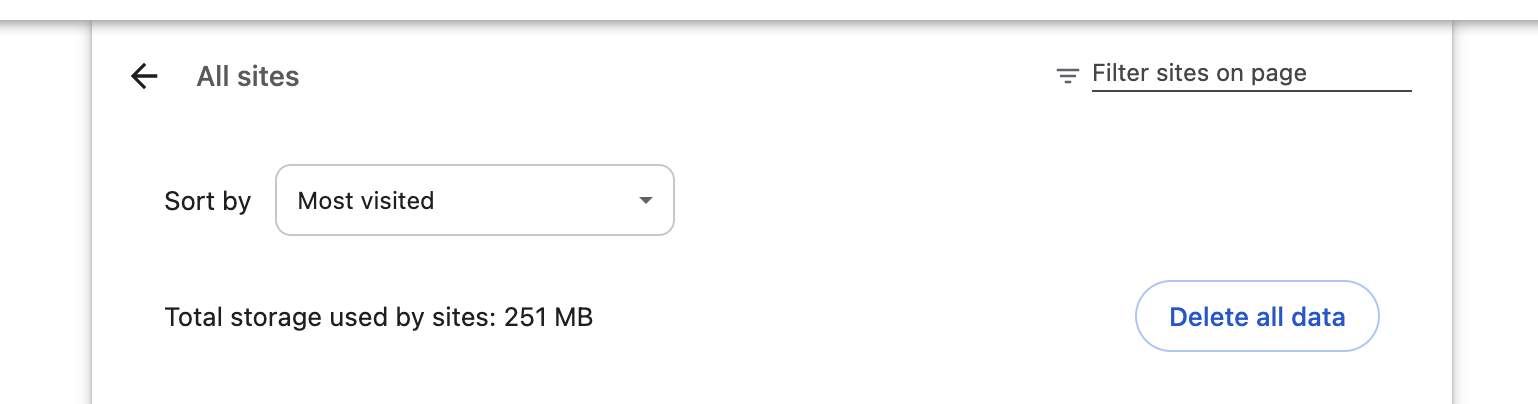
Chrome's All sites page. The filter box is top right. - Click the trash can icon next to the site in the results, then click Delete to confirm.
- Close the settings tab.
The button by that name at the top of the page clears every site in your browser and signs you out of all of them. You only need the one row.
Microsoft Edge
-
Open a new tab, paste this into the address bar and press Enter.
edge://settings/siteData
If that doesn't land you on a list of sites, go the long way: … menu (top right) → Settings → Cookies and site permissions → Manage and delete cookies and site data → See all cookies and site data.
-
Type your CRM address into the search box at the top of that list.
app.digitalgymgrowth.com
- Click the trash can icon on the row for the site, then confirm with Delete.
- Close the settings tab.
It clears every site you've ever visited in Edge. You only want the one row.
Brave
Brave is built on the same engine as Chrome, so the steps match. Only the address changes.
-
Open a new tab, paste this into the address bar and press Enter.
brave://settings/content/all
-
Paste your CRM address into the Filter sites on page box at the top right.
app.digitalgymgrowth.com
- Click the trash can icon next to the site, then click Delete.
Brave's Shields block scripts that the CRM sometimes needs. Go back to the CRM, click the orange lion icon in the address bar, and switch Shields to down for this site. That setting sticks, and it only applies to this one site.
Firefox: the quick way
- Go to the CRM and stay on the page.
- Click the padlock icon at the left of the address bar.
- Choose Clear cookies and site data…, then Remove.
Firefox: the thorough way
- Open the ☰ menu (top right) → Settings.
- Select Privacy & Security in the left sidebar.
- Scroll to Cookies and Site Data and click Manage Data….
-
Search for your CRM and select the row.
digitalgymgrowth.com
- Click Remove Selected, then Save Changes, and confirm with Remove.
Firefox renames these panels fairly often. Whatever it's called in your version, you're after Privacy, then the section about cookies and site data, then manage.
Safari on a Mac
- With Safari open, click Safari in the menu bar → Settings (keyboard shortcut
⌘ ,). On older versions this is called Preferences. - Open the Privacy tab.
- Click Manage Website Data… and wait a moment for the list to fill.
-
Search for the site and select it.
digitalgymgrowth.com
- Click Remove, then Done.
You'll usually see one digitalgymgrowth.com entry rather than the full app. address. That's the right one. Removing it covers the CRM.
Safari on iPhone or iPad
- Open the Settings app → Apps → Safari. (On older iOS, Safari sits directly in the Settings list.)
- Scroll down and tap Advanced → Website Data.
- Search for digitalgymgrowth.
- Swipe left on the row and tap Delete.
Chrome on Android
- Tap the ⋮ menu → Settings.
- Tap Site settings → All sites.
- Find app.digitalgymgrowth.com in the list and tap it.
- Tap Clear & reset (or the trash can), then confirm.
Chrome on iPhone
Chrome on iPhone can't clear a single site. Tap … → Settings → Privacy and Security → Delete Browsing Data, choose Cookies, Site Data with a time range of All Time, and delete. Be aware this signs you out of other sites in Chrome on that phone too.
Now sign back in
-
Go to your CRM.
app.digitalgymgrowth.com
- Log in as normal.
- Go back to whatever wasn't working and check it.
Open a private or incognito window and log in to the CRM there.
- It works in private mode. Something in your normal browser is interfering. Usually an ad-blocker or privacy extension; switch it off for this site.
- It's broken there too. It isn't your browser. Stop here and tell Matt.
Either way, the fastest thing you can send is: what you were doing, a screenshot, and which browser you're on.